
How to use settl
Everything you need to go from a fresh install to running your billing through settl.
← Back to get-settl.com
Everything you need to go from a fresh install to running your billing through settl.
← Back to get-settl.comAfter downloading and opening the .dmg, drag settl into Applications. Since settl isn't (yet) code-signed, macOS will warn it's from an unidentified developer the first time you open it — right-click the app and choose Open, then confirm; this works on most Macs. If it doesn't, open Terminal and run xattr -dr com.apple.quarantine /Applications/settl.app, then open settl normally. Either way, this is only ever needed once.
The first screen you'll see asks you to either start a free 30-day trial (type your email, a code is emailed to you) or, if you already have a lifetime code, enter it directly.
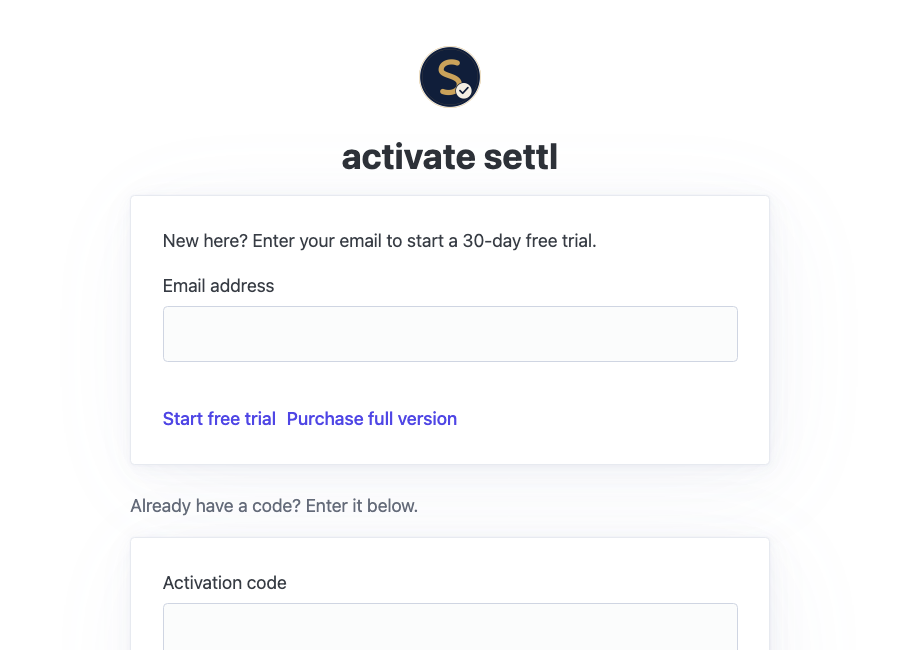
The activation screen — your very first launch.
Once activated, go to Settings → Business Information and fill in your name, address, phone, and email, and optionally upload a logo. This is what appears at the top of every invoice and quote you send, so it's worth doing first.
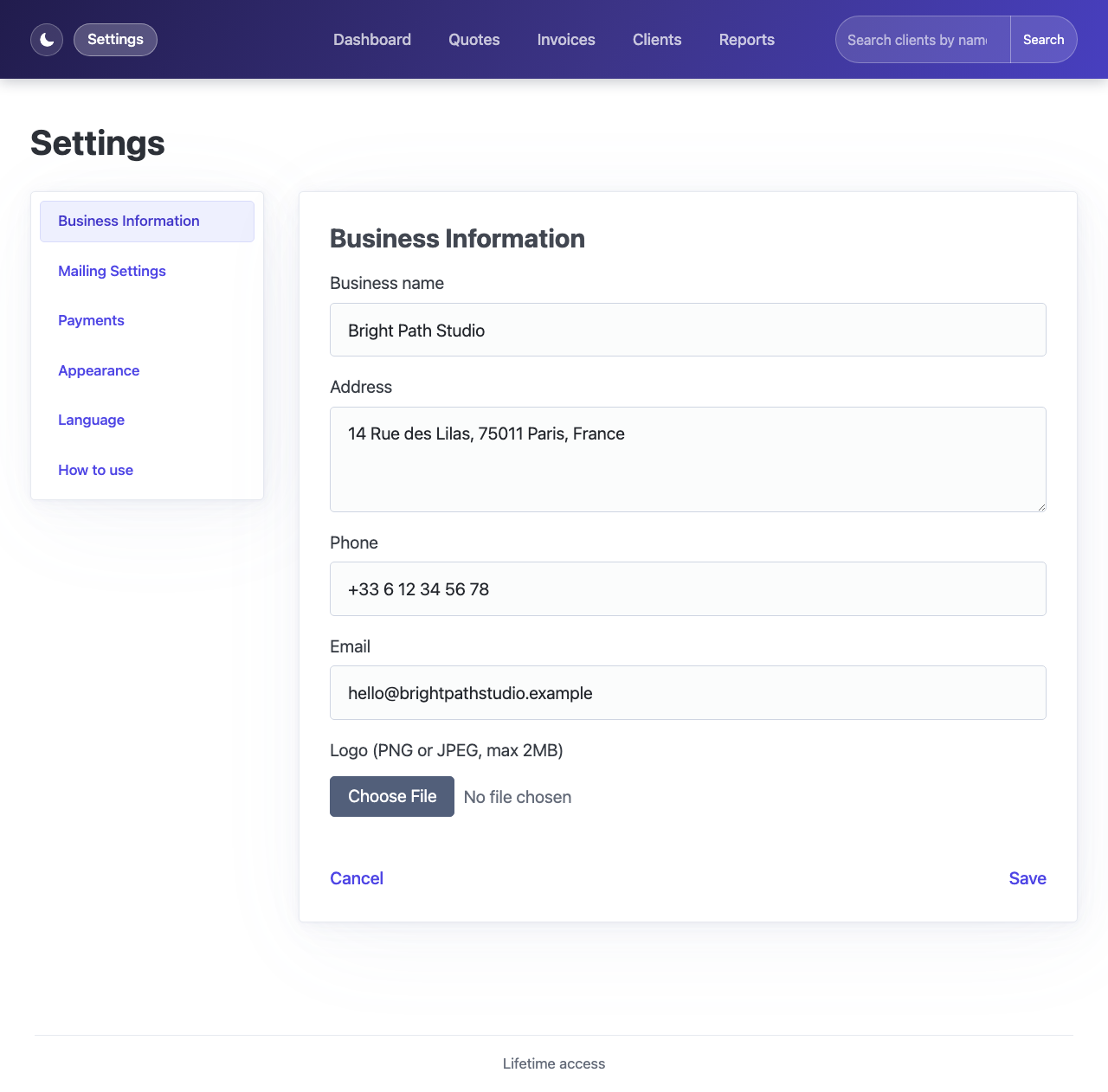
Settings → Business Information.
Both are entirely optional — settl works fully with manually-entered payments alone. Connecting either one lets settl pull in matching payments automatically in the background, no manual entry needed, and lets it generate a payment link to include in invoice/reminder emails.
Go to Settings → Payments:
sk_live_, or sk_test_ for Stripe's test mode). It has access to your whole account.If a customer who pays you through Stripe or PayPal doesn't already exist as a client in settl, one is created automatically from their name/email the first time a matching payment comes in.
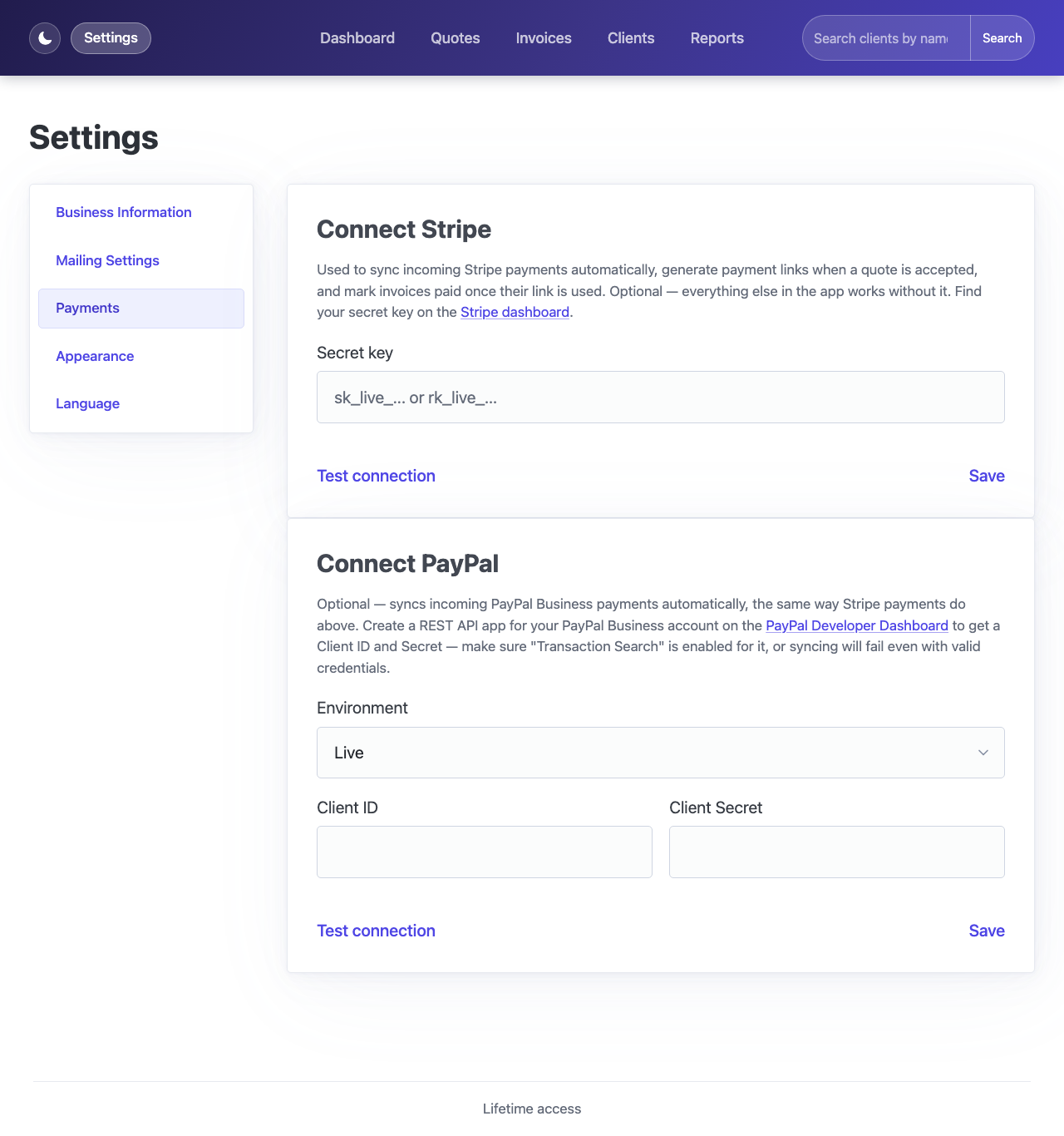
Settings → Payments.
Also optional, but needed for anything settl sends on your behalf — invoices, quotes, and automatic payment reminders. Go to Settings → Mailing Settings and enter your SMTP details (most email providers, including Gmail with an app password, publish these). Use "Send test email" to confirm before relying on it. You can also personalize the wording of the emails settl sends here.
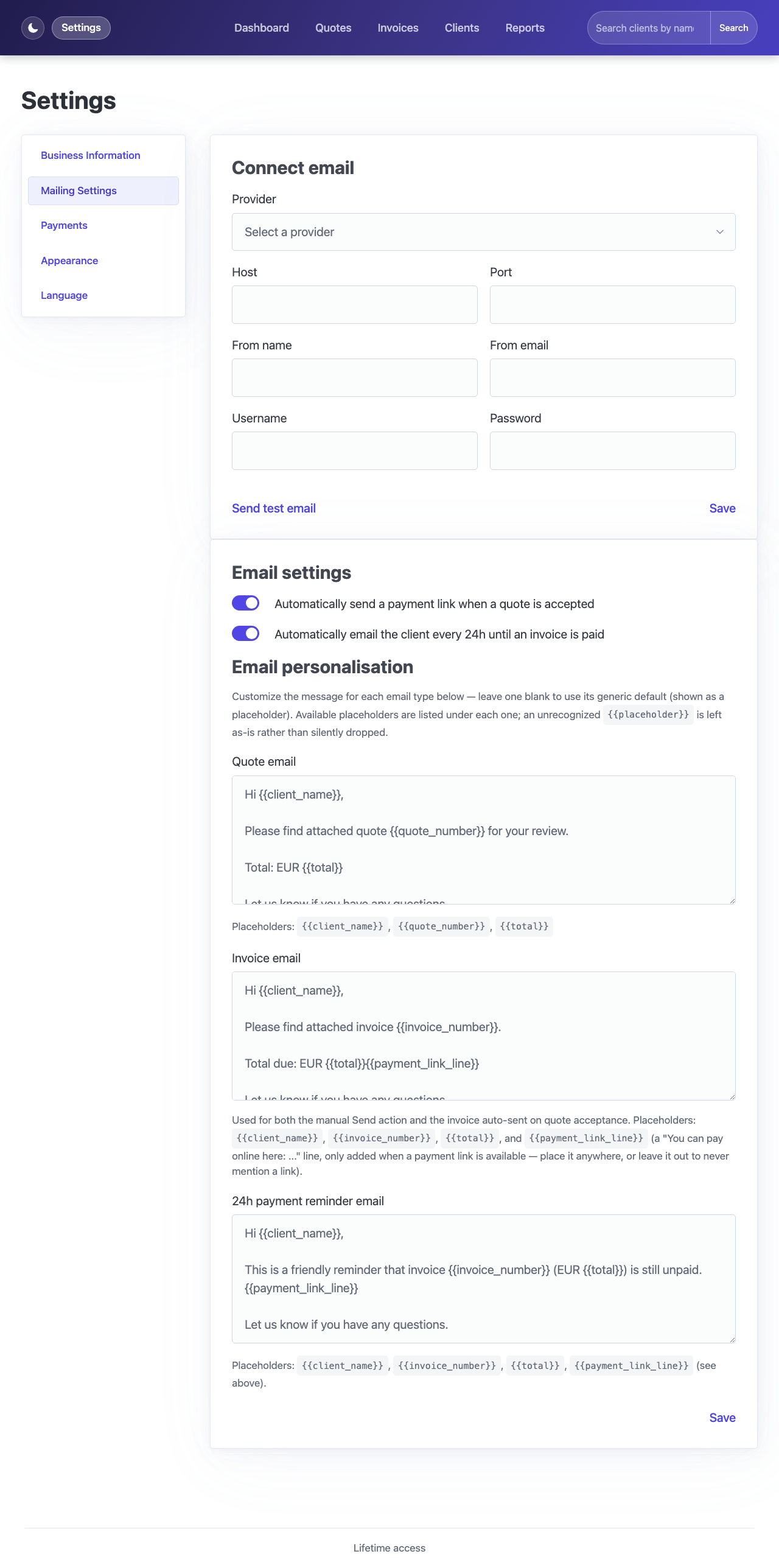
Settings → Mailing Settings.
Go to Clients → Add client and fill in their name, email, and optionally a company name and notes. That's it — invoices, quotes, and payments all get attached to a client from here.
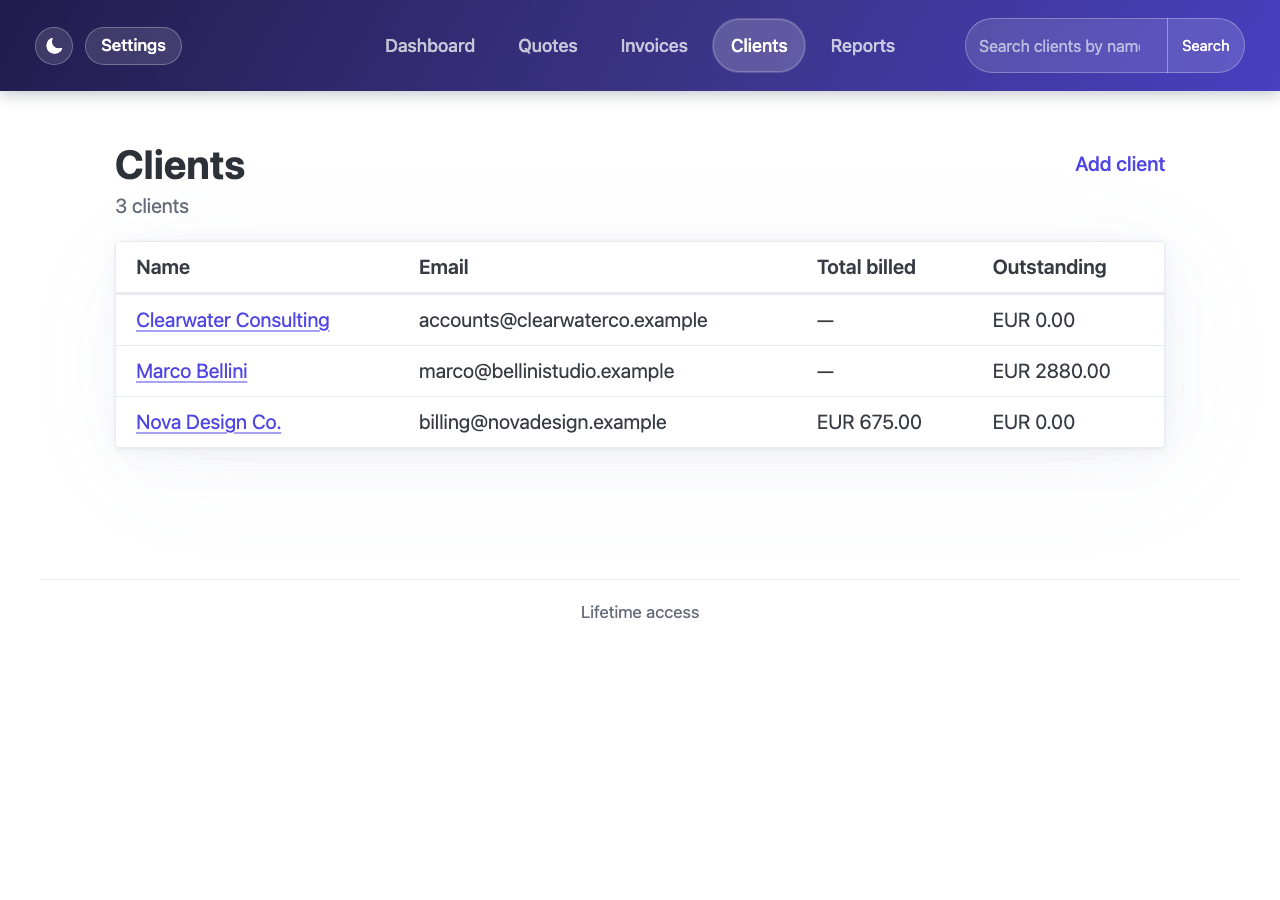
The Clients list — total billed and outstanding at a glance.
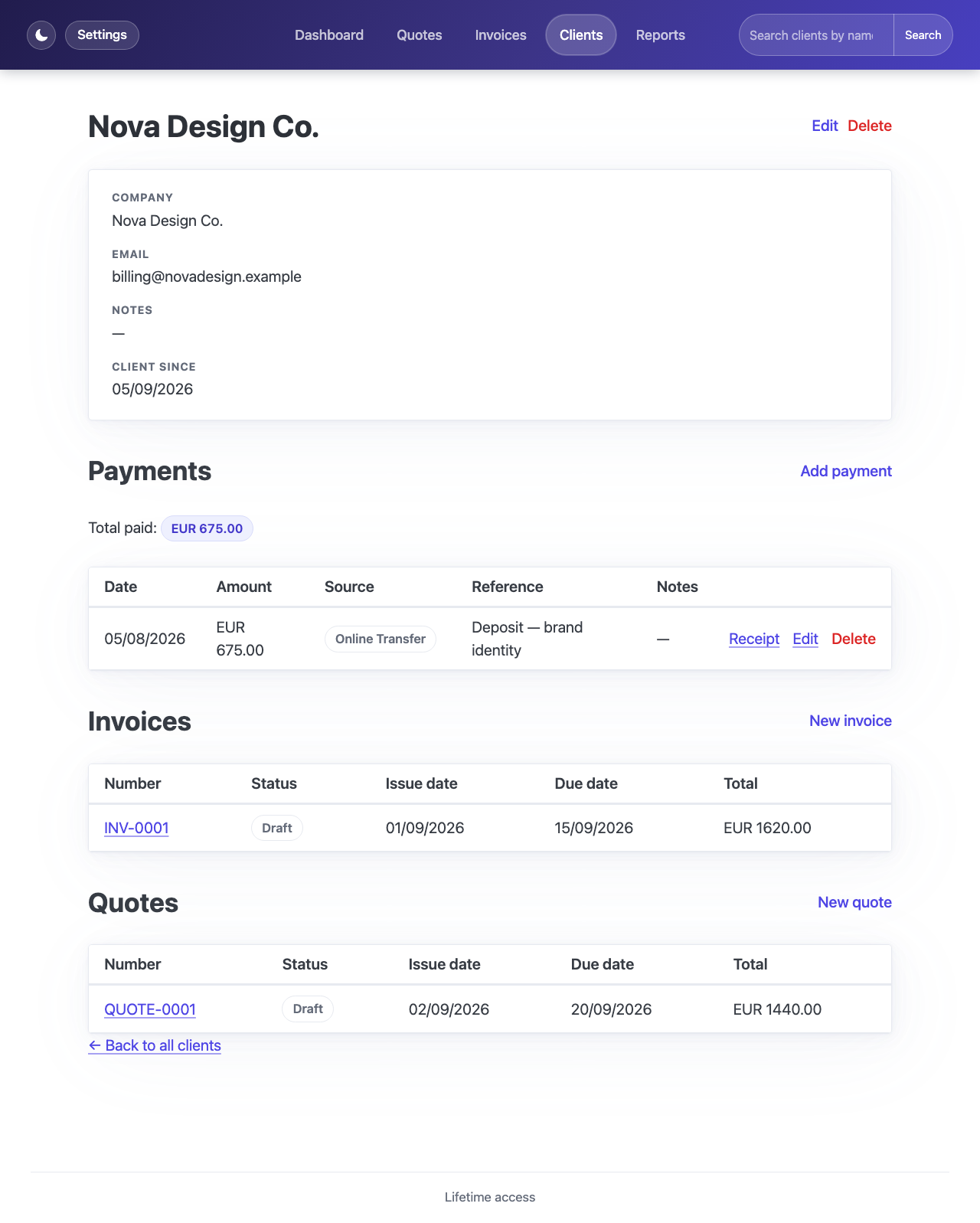
A client's own page: their invoices, quotes, and payments, all in one place.
From Invoices → New invoice, pick a client, add line items (description, quantity, unit price), and optionally a discount or tax rate. Save it as a draft first — you can always edit it before sending.
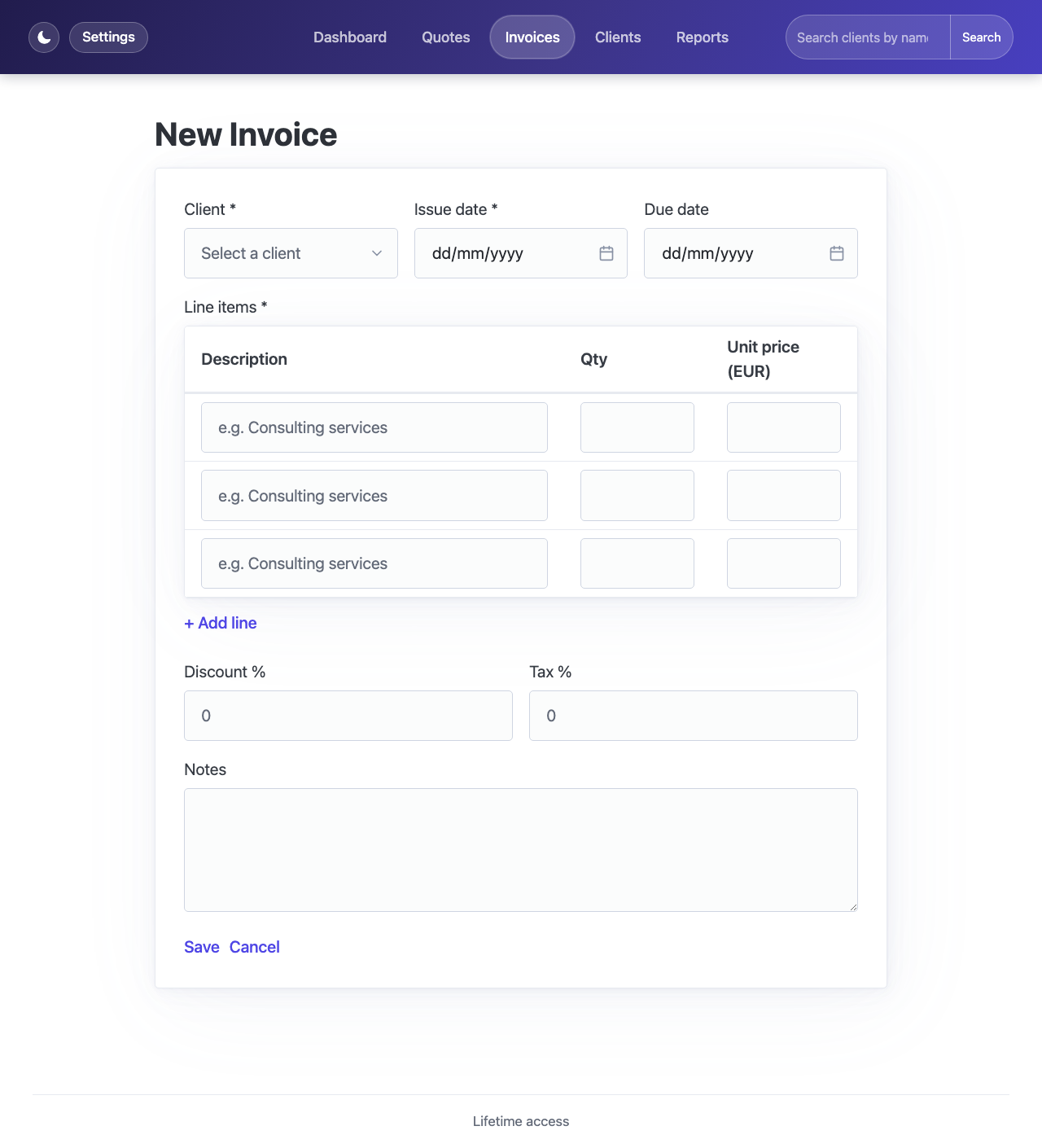
Creating an invoice — line items, tax, and discount are all optional per invoice.
When you're ready, open the invoice and click Send — this emails the client a PDF copy (with a Stripe payment link included, if Stripe is connected) and flips the status from Draft to Sent. Nothing is ever marked "sent" without an email actually going out.
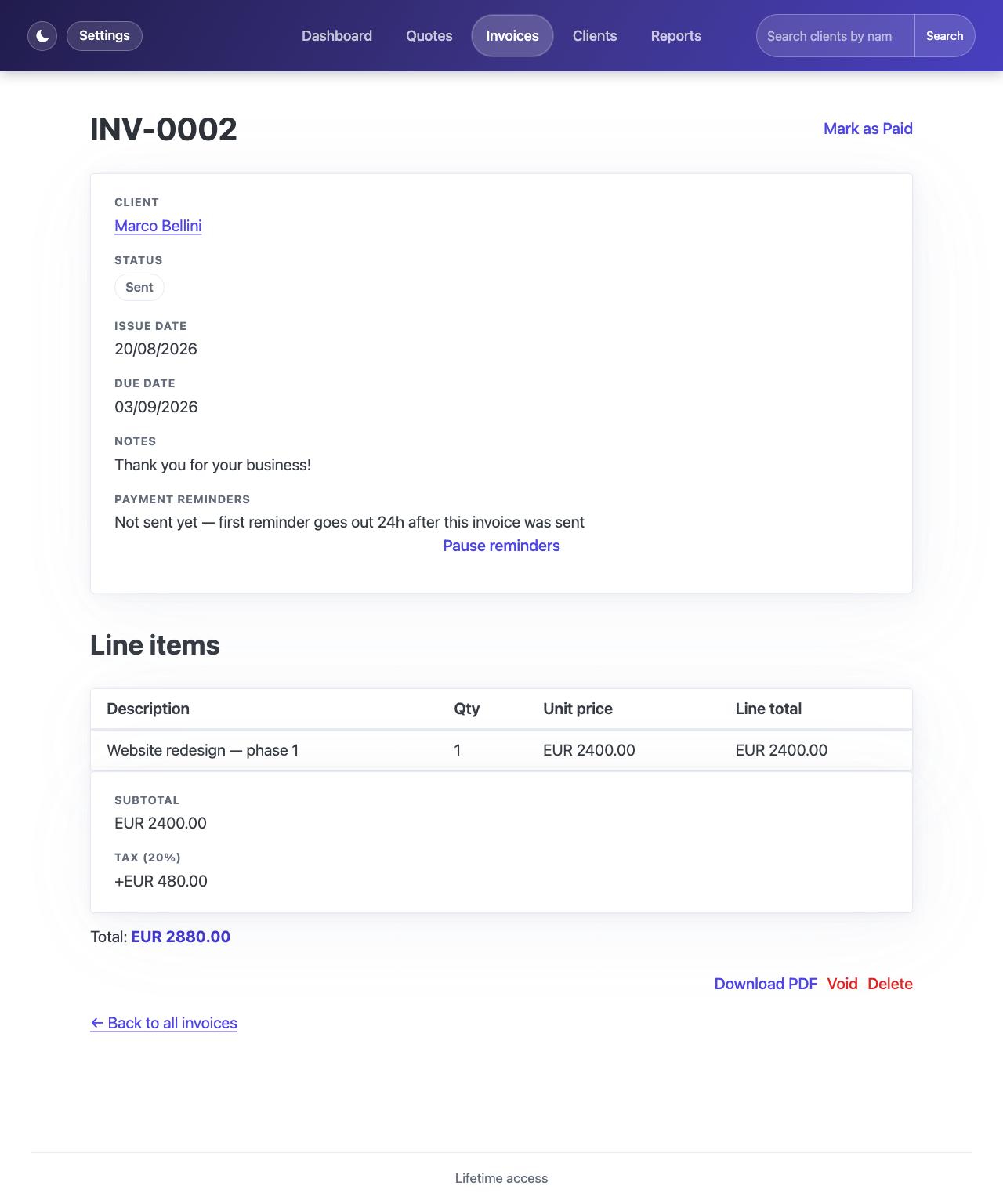
A sent invoice — note the Payment Reminders section explained in step 9 below.
Quotes work the same way as invoices to create — Quotes → New quote, pick the client, add line items, save as a draft.
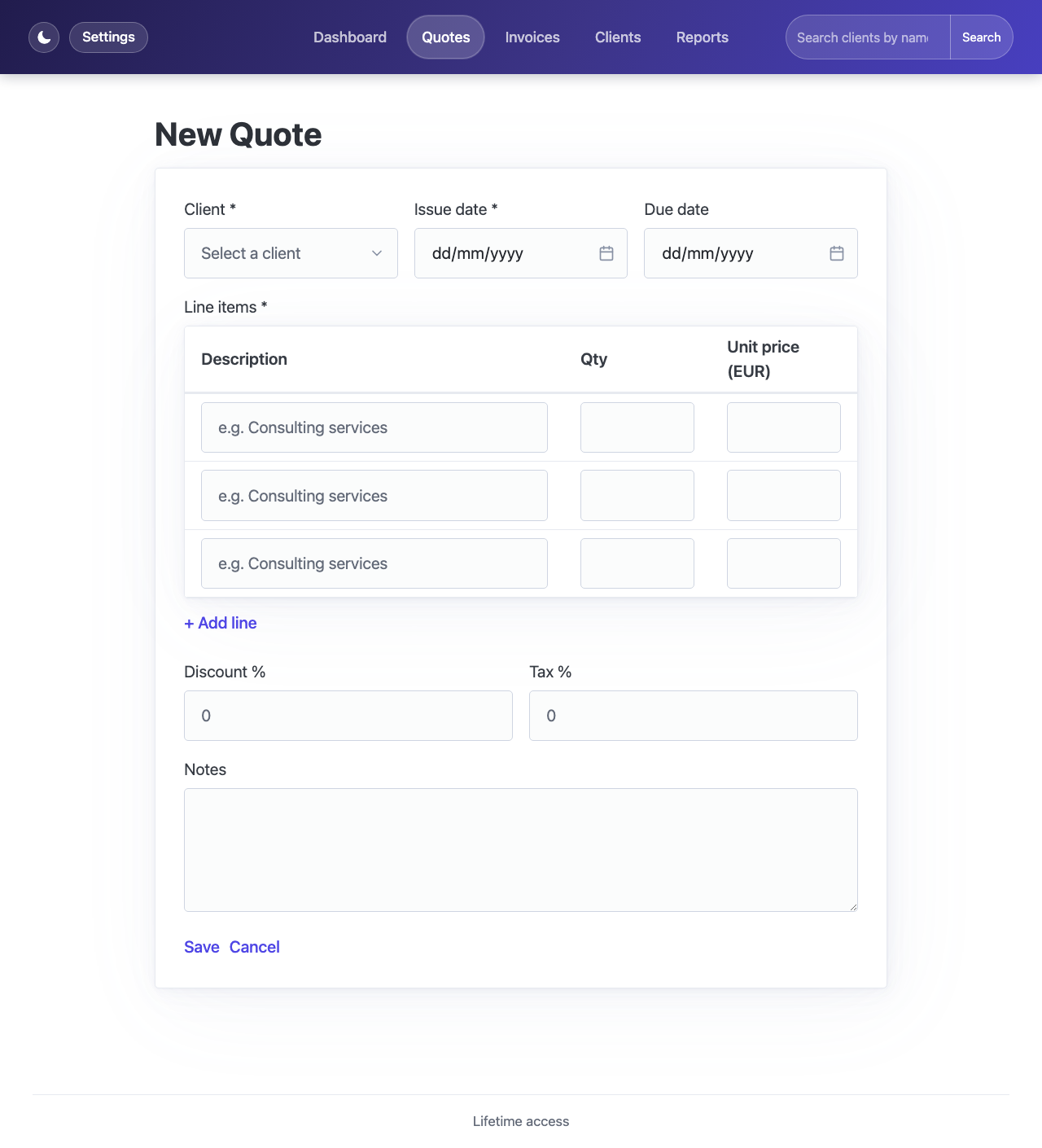
Creating a quote.
Click Send when it's ready. This only works if the client has an email address on file, and it does exactly what it sounds like: generates a PDF of the quote and emails it, using either the default wording or whatever you've personalized in Settings → Mailing Settings. The quote is only marked Sent once that email genuinely goes out — if it fails (say, your email settings aren't finished yet), the quote stays a draft rather than silently looking sent when it wasn't, so you always know where things actually stand.
There's no self-service link for the client to click here — settl doesn't publish anything publicly for someone to accept on their own. Once they've told you they accept it, however they told you (an email reply, a phone call, whatever works for you both), come back to the quote yourself and click Accepted. The moment you do, settl automatically:
If that invoice email can't be sent for some reason (missing client email, an SMTP problem), the invoice is still created — you'll see a warning explaining what happened, not a failure. Nothing from the quote gets lost either way.
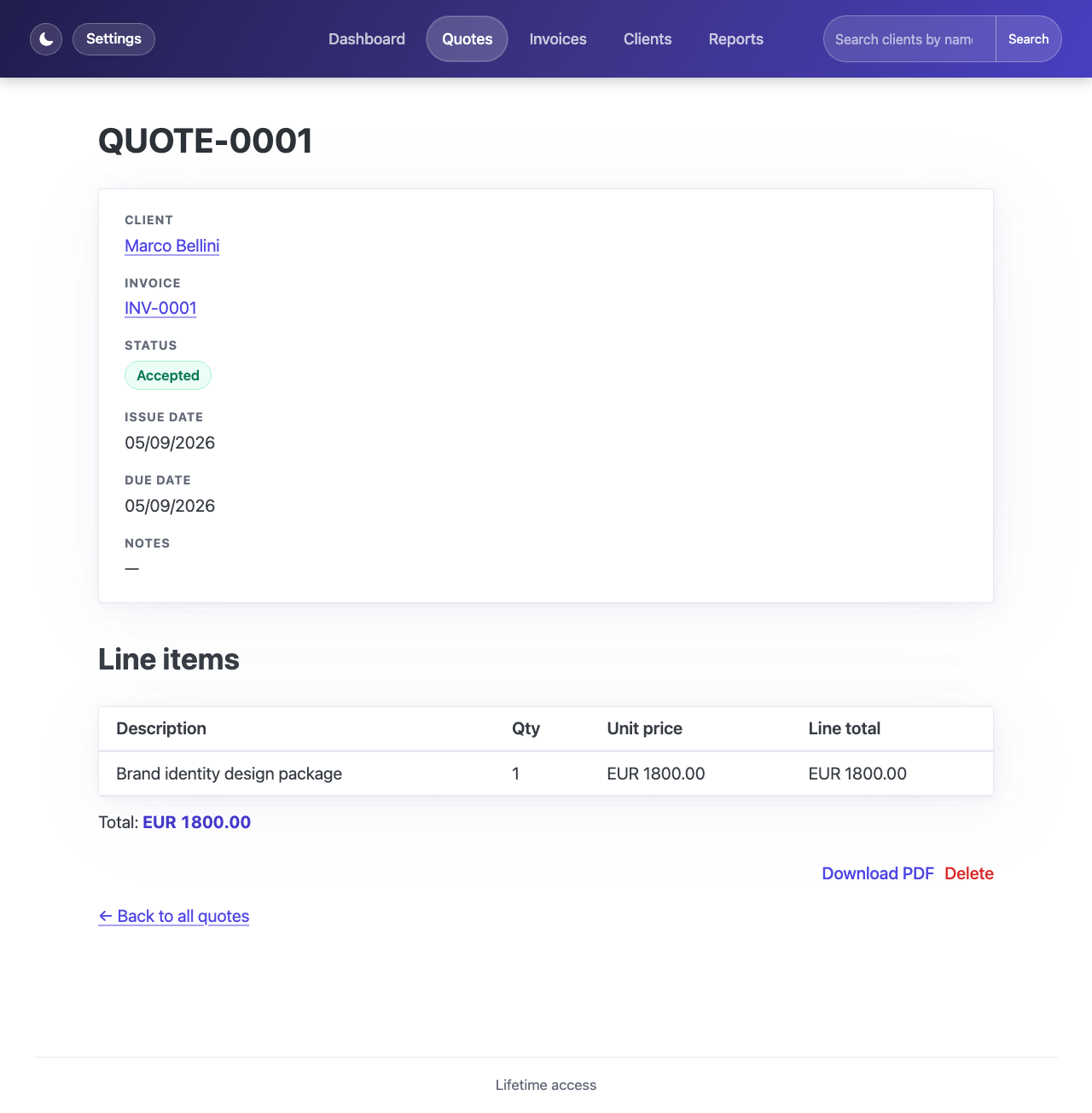
An accepted quote — its matching invoice (INV-0001) was created and sent automatically.
For anything that doesn't come through Stripe or PayPal — a bank transfer, cash, or anything else — add it yourself from a client's page or via Quick add payment on the Dashboard. Pick the client, amount, currency, source, and date paid.
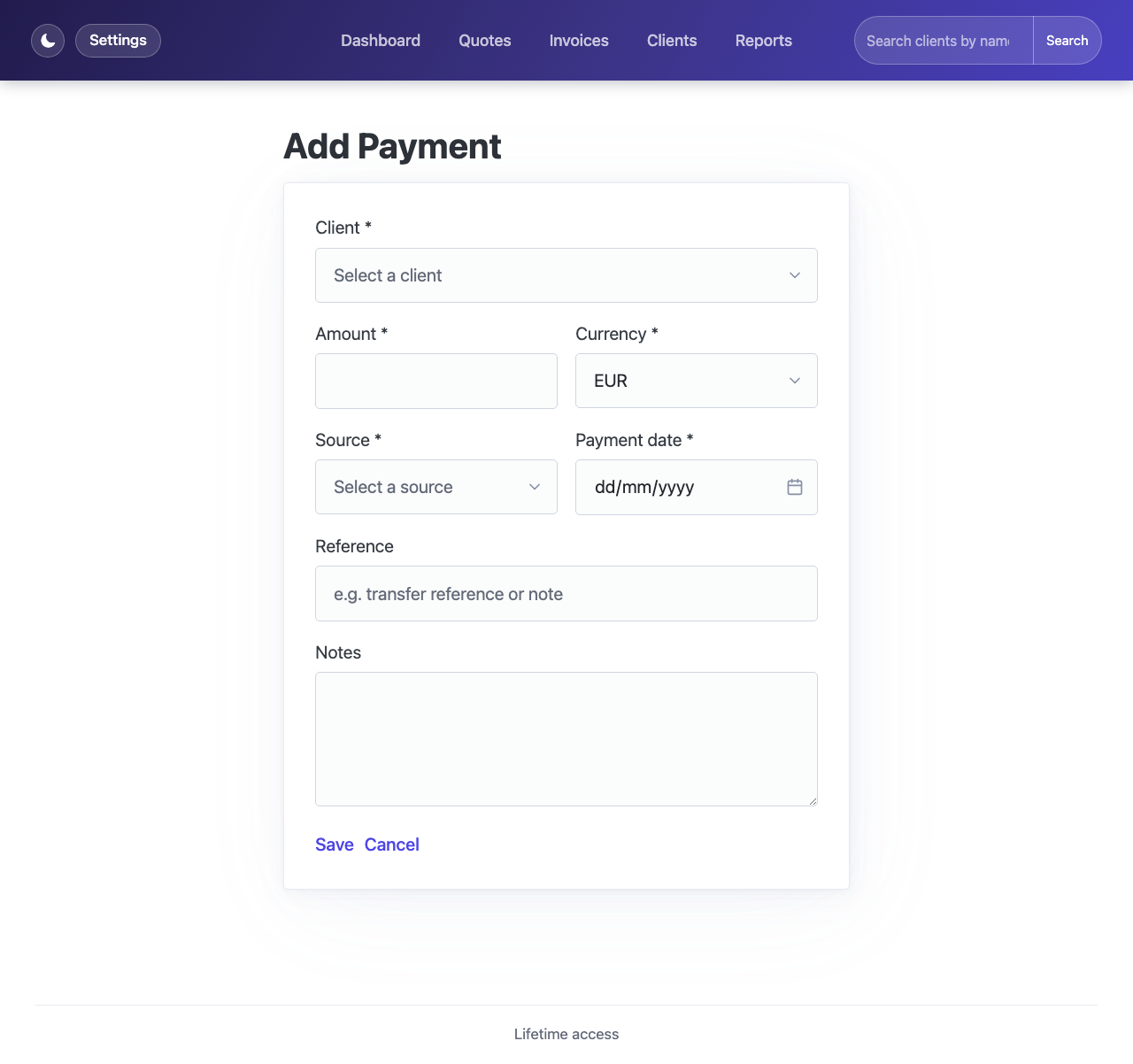
Recording a manual payment.
Once email is set up (step 4), settl automatically follows up on any invoice that's been sent but not yet paid — no action needed from you per invoice. Each sent invoice's own page shows exactly when its next reminder is due, and has a one-click Pause reminders option if you'd rather chase a particular client yourself.
Reminders only ever go out for a sent invoice that's still unpaid — nothing is sent for drafts, and reminders stop automatically the moment an invoice is marked paid or void.
The Dashboard is your home page — all-time totals, a net revenue chart for the last 12 months, and your most recent payments.
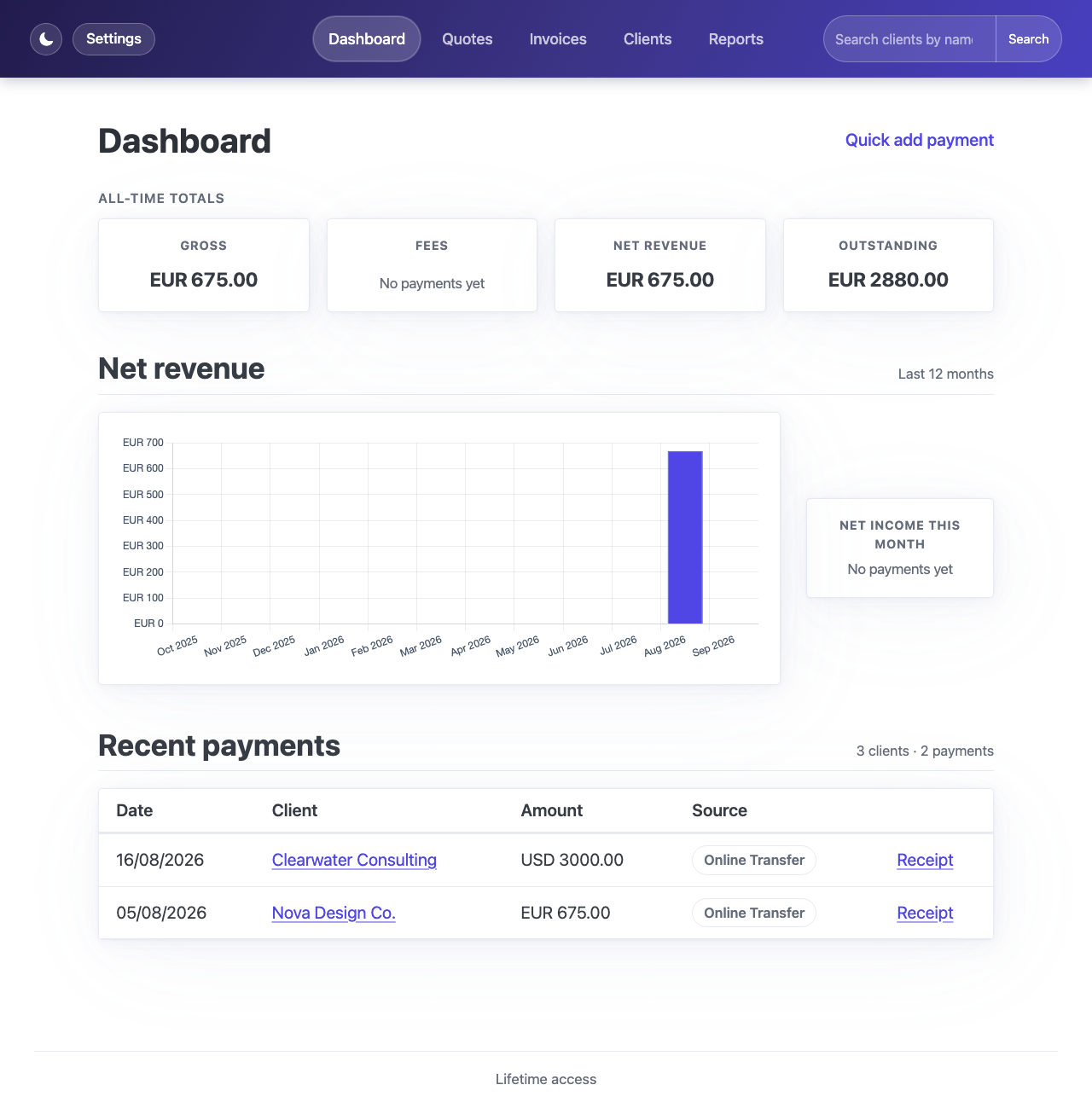
The Dashboard.
Reports goes further — totals broken down per client and per month, useful at tax time or when reviewing a specific client's history.
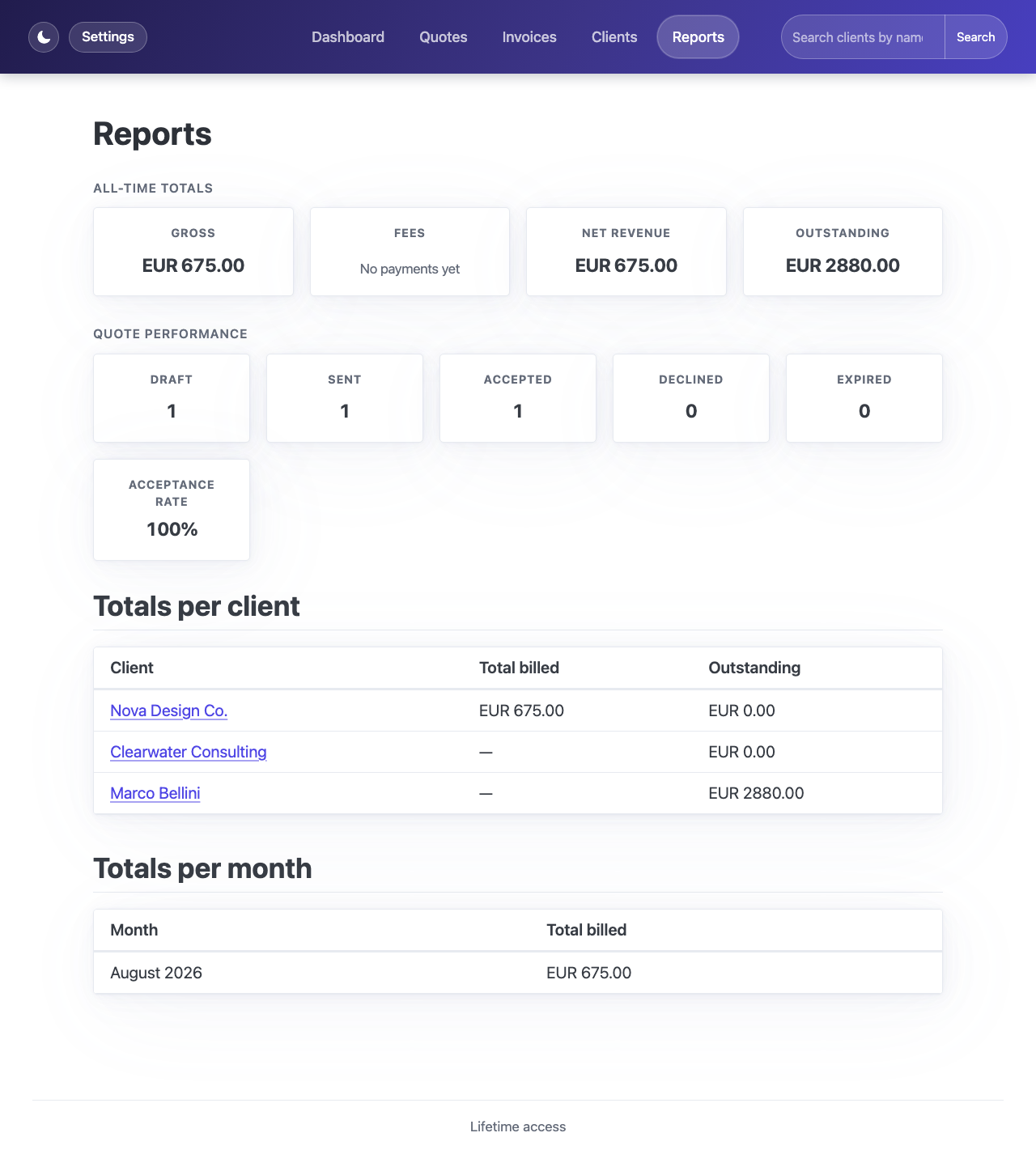
Reports.
The search bar in the header looks across clients, invoices, quotes, and payments at once — a client name, invoice number, or payment reference all work.
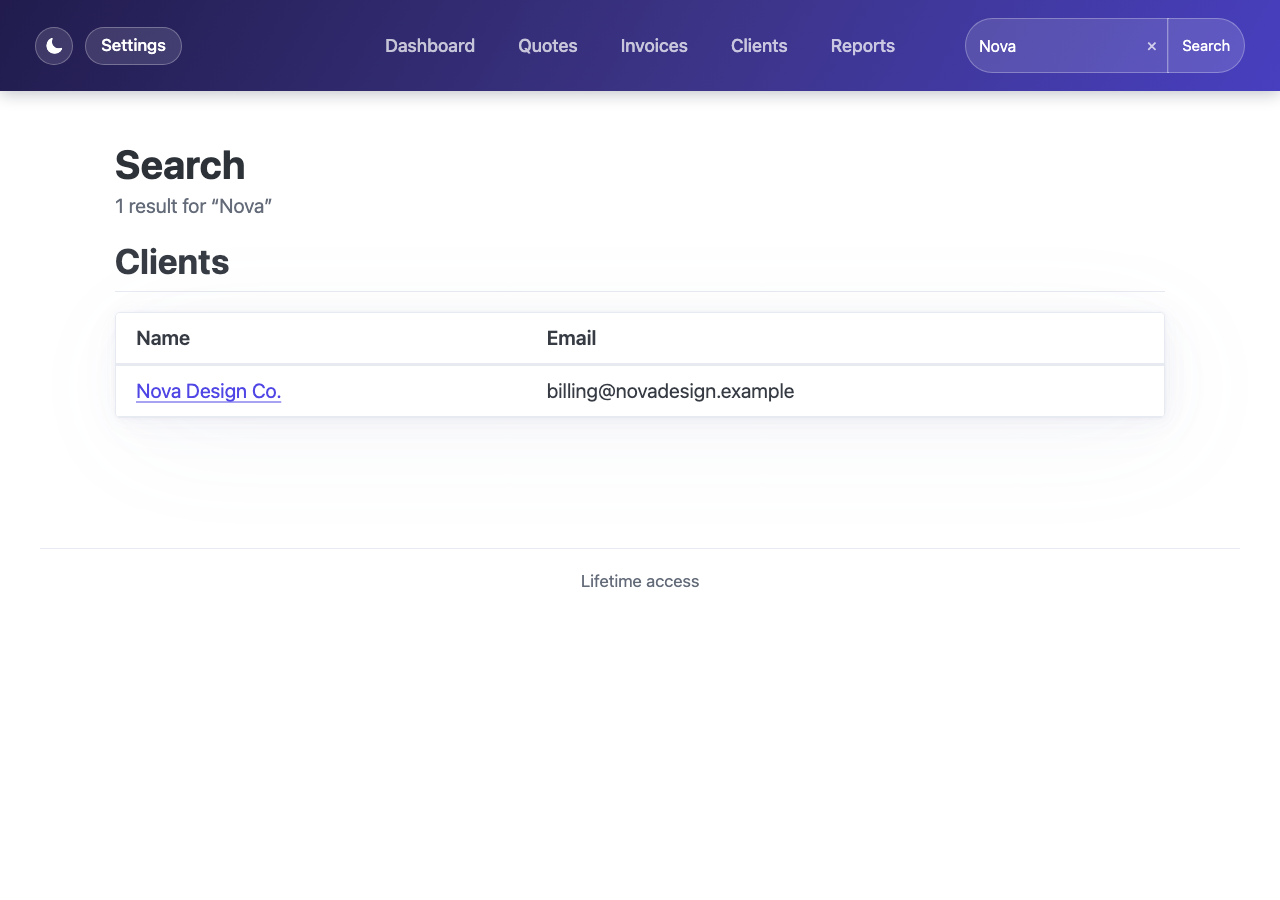
Search results for "Nova".
Settings → Appearance lets you pick a color theme and switch between light and dark mode. Settings → Language switches the entire app — including the emails settl sends on your behalf — between English, French, and Spanish.
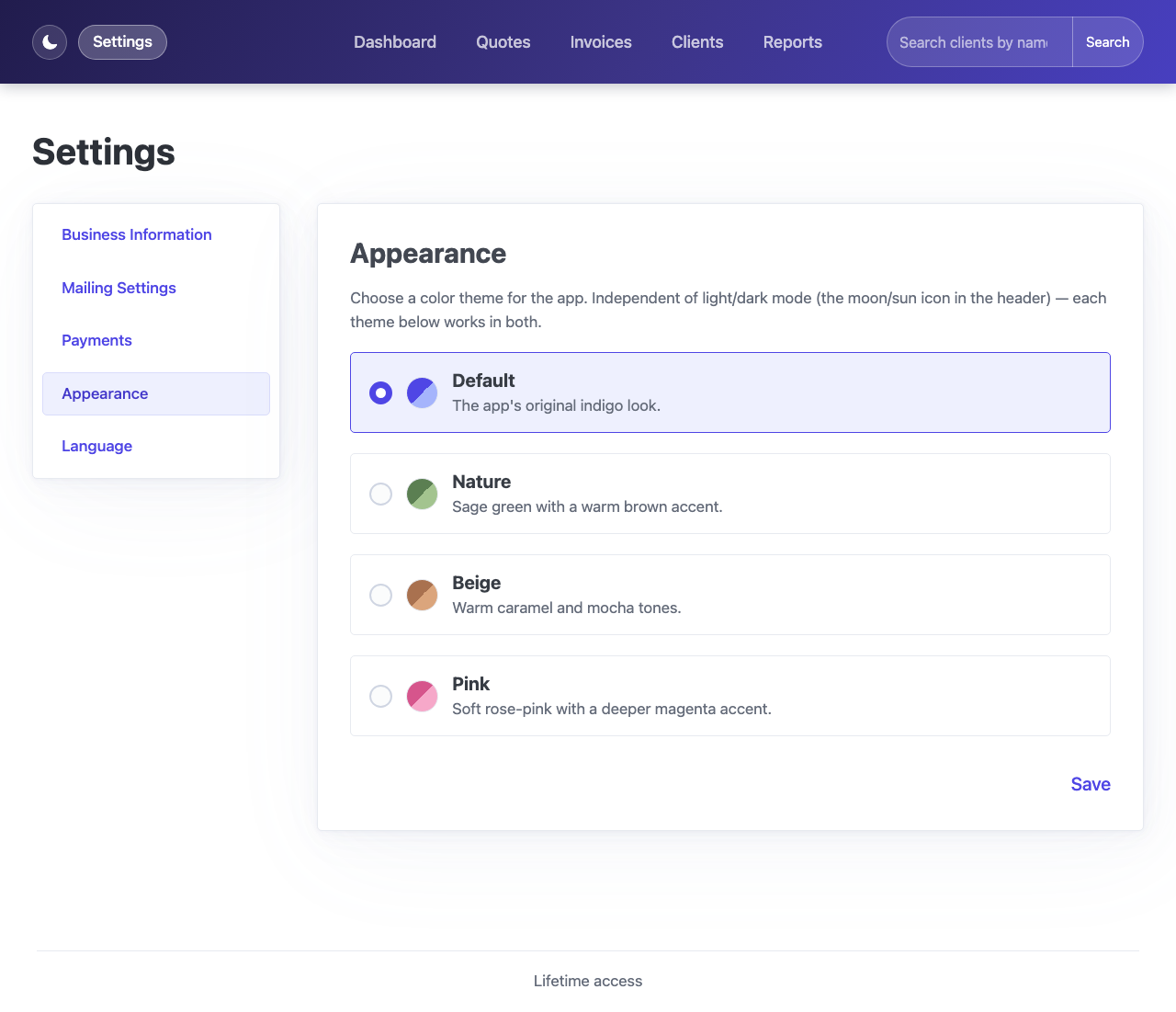
Settings → Appearance.